

Miitomo is Nintendo’s charmingly strange social app where Mii characters chat, pose, and overshare in ways that feel half wholesome and half unhinged. Running miitomo on a PC can feel amazing or awful, depending on how you set things up. One minute it’s smooth and playful, the next it’s stuttering like it just woke up from a nap. The good news is that most performance issues are self-inflicted. A few smart adjustments can turn chaos into calm. This app was built for phones, not towers with fans louder than your fridge. That mismatch is actually a gift. PCs give Miitomo more power than it expects, but only if you guide that power properly.
Pick Emulator Settings That Match Your Hardware
Emulators love to overpromise. They ask for more CPU cores and memory than Miitomo can sensibly use. That creates traffic jams instead of speed. Assigning two to four CPU cores usually works better than maxing everything out. RAM allocation matters just as much. Giving the emulator a moderate chunk keeps things stable without starving your system. Too much memory can backfire, especially on mid-range machines. Balance beats excess here. Graphics mode is another lever. Hardware acceleration usually wins, but some systems behave better with compatibility settings. Test once, then stick with what feels smooth. Consistency is the real goal.
Tame Background Processes Before They Bite

Your PC loves multitasking. Miitomo does not. Background apps steal resources quietly, then act innocent. Browsers with ten tabs open are frequent offenders. Shut down what you don’t need. Launchers, updaters, and chat apps can wait. Freeing CPU cycles reduces frame drops instantly. It’s like clearing clutter off a desk before starting work. Also, check power settings. PCs set to power-saving throttle performance without asking. Switch to high-performance mode. Miitomo responds better when your system stops whispering and starts speaking clearly.
Keep the Emulator and Drivers in Sync
Old software causes new problems. Emulator updates often include performance fixes that quietly matter. Staying current avoids bugs that look like hardware flaws. Updating doesn’t mean chasing every beta, just keeping pace. Graphics drivers matter more than people admit. Updated drivers improve compatibility and reduce visual glitches. They also handle emulation workloads more gracefully. That’s a free performance sitting at the table. System updates play a role as well. Outdated operating systems mismanage resources. A current system handles scheduling better. Miitomo benefits from that invisible polish.
Adjust Display and Resolution for Stability
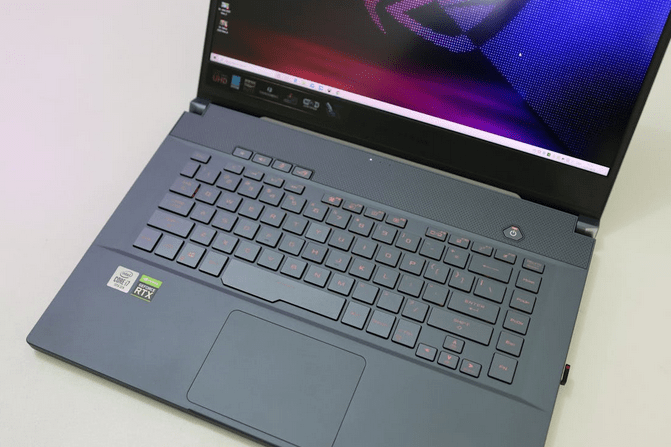
Big screens tempt big resolutions. That temptation causes lag. Miitomo doesn’t need ultra-high resolution to look good. Lowering emulator resolution often smooths animations dramatically. Frame rate caps help too. Locking the app to a steady frame rate prevents wild swings. Stability feels better than raw speed. Your eyes agree, even if your ego doesn’t. Fullscreen mode can also help. Windowed modes add overhead and distractions. Fullscreen gives the emulator priority. It feels more focused and less jittery.
Reduce Input Lag and Visual Noise
Input lag kills the vibe. Switching input modes inside the emulator can help. A keyboard and mouse usually feel snappier than simulated touch. Less delay equals better flow. Disable unnecessary visual effects inside the emulator. Shadows, fancy transitions, and animations eat resources. Miitomo’s charm survives without them. The app feels lighter and more responsive. Sound settings also matter. Audio desync can cause stutter. Lowering the audio buffer size reduces delay. When sound and visuals agree, the whole experience tightens up.
Miitomo on PC doesn’t need brute force. It needs respect and restraint. Smart settings, clean systems, and realistic expectations do the heavy lifting. Treat the app like a guest, not a stress test. Once dialed in, it runs smoothly and keeps its playful personality intact.